Monday, 14 March 2016

Caterpillar's New S60 Is the First Smartphone With FLIR Thermal Imaging Built Right In


Caterpillar's New S60 Is the First Smartphone With FLIR Thermal Imaging Built Right In


Once strictly an extremely expensive tool used only by law enforcement and the military, thermal cameras are now accessible to anyone with a smartphone and 250 $ accessory .But starting with Caterpillar’s new rugged S60, thermal imaging sensors are starting to be built right into smartphones.


The FLIR ONE thermal camera started life as a bulky case for the iphone 5.
but was eventually streamlined in to a compact dongle that connected to the microUSB or Apple Lightning port on the bottom of iOS or Android smartphones. With the new CAT S60 smartphone, however, the Lepton sensor that allows FLIR cameras to see in total darkness has finally been integrated into the device itself, alongside its standard rear camera.

The first smartphone to feature an integrated thermal imaging sensor isn’t exactly skinny, though. The new CAT S60 measures in at just slightly thicker than half an inch, but that’s not a deal breaker because the phone isn’t being targeted at the average consumer who wants as sleek a device as possible to slip into their pockets.


Since it’s part of the Caterpillar brand, known for its bright yellow and monstrous construction machines, the CAT S60 is designed for those who are used to dealing with big tools all day long. But it’s not just the addition of the FLIR Lepton sensor, or a hefty 3,800 mAh battery, that are responsible for the smartphone’s girth.


To ensure the CAT S60 is as rugged as the machinery that bears the Caterpillar name, it features a strengthened die cast steel frame inside, and is designed to exceed the military’s 810G drop test specifications. In civilian terms, its housing and Gorilla Glass 4 display can easily survive a drop onto hard concrete from a height of just over five-and-a-half feet.
The S60 also boosts the waterproofing prowess of its predecessors. Previous versions of the device could survive, and function, as deep as six-and-a-half feet under water. But by flipping a couple of switches on the front of the device, which seals off its speaker, headphone port, and microphone openings, the CAT S60 can now function underwater, for about an hour, at a depth of just over 16 feet.
So in other words, you don’t have to keep it hidden and protected in a pocket during rainy days on the job site.


The target demographic for the new CAT S60, which includes engineers, construction workers, inspectors, or anyone needing a Tonka-tough phone, probably isn’t especially concerned with tech specs—but we are.
Available sometime closer to June later this year for $599, the quad-band CAT S60 features 32GB of onboard storage, 3GB of RAM, and a Snapdragon Octa-core processor powering Android Marshmallow. It’s 4.7-inch Gorilla Glass touchscreen display can also be used with wet fingers or while wearing gloves, but with a resolution of just 1280 x 720, you won’t want to rely on it as your main device for media consumption.
It supports location tracking using GPS, assisted-GPS, Glonass, and even the Chinese Beidou satellite network. And the CAT S60 includes Bluetooth, NFC, an FM radio tuner, and barometer and altimeter sensors.


The front camera maxes out at five megapixels, while the rear camera manages 13. But since it sits right next to the smartphone’s thermal imaging Lepton sensor, the two can work together to create an enhanced hybrid image by merging live feeds from both cameras together. That was one of the most important innovations that FLIR introduced on the FLIR ONE, and it allowed those who weren’t familiar with thermal imaging to be able to easily decipher what they were looking at.


Like laser pointers, we’ve been fascinated with thermal imaging devices every time we’ve had the opportunity to review them. Finding a practical, everyday use for either device has always been tricky, and spending $250 on a technological novelty is a tough sell.


But walk around a construction site and there are endless uses for a thermal camera. Is that window frame properly insulated? Are those wires overheating? Which pipe is carrying hot water? So while the CAT S60 might not be as pretty as an iPhone 6 or Galaxy S6 Edge, it just might be the most envious tool you’ll find on a construction site—next to those towering wrecking balls.


[Caterpiller] 

Wednesday, 17 February 2016

Ringing Bells Freedom 251 smartphone with 1GB RAM, Android 5.1 launched in India for Rs 251

Ringing Bells Freedom 251 smartphone with 1GB RAM, Android 5.1 launched in India for Rs 251


Ringing Bells today  launched the Freedom 251 world's cheapest smartphone.It has a 4-inch WVGA display, is powered by 1.3GHz quad-core processor with 1GB of RAM and 8GB of ROM .supports 3G connectivity and runs on Android 5.1 (Lollipop). It has a 3.2-megapixel rear camera and a VGA front-facing camera. smartphone packed by a 1450mAH battery,


‘Freedom 251’ launch is in line with Prime Minister Narendra Modi’s vision for “empowering India to the last person, transforming India’s growth story”. The phone comes pre-loaded with several apps for Women Safety, Swachh Bharat, Framers, Fishermen and more.

4-inch (960 x 540 pixels) display
1.3GHz quad-core processor
1GB RAM, 8GB internal memory, expandable memory up to 32GB with microSD
Android 5.1 (Lollipop)
3.2MP rear camera
0.3MP front-facing camera
3G,WiFi 802.11 b/g/n and Bluetooth, GPS
1450mAh battery


Ringing Bells Freedom 251 comes in white color and is priced at just Rs. 251. It comes with 1-year warranty and the company says that it has over 650 service centers across India.


for more info  click here


Friday, 22 January 2016

A GENUINE WEBSITE TO EARN MONEY FROM ONLINE (working in INDIA,USA,UK,AUSTRALIA,CANADA )

A GENUINE WEBSITE TO EARN MONEY FROM ONLINE 

These days we are familiar with lot of mobile apps and money earning tricks from online.Lot of websites and apps promise us money for doing their promotions and downloading their apps or force us to use our credit card details to recharge mobile and get money back . i also tried few apps and money earning websites and found most of these websites are fake ,they do not give us anything ,mobile apps were better for earning talk time but none of them lasts .only worked for few weeks or months

Finally i started to use this website "swagbucks.com" and found it is genuine and working or me
so i am sharing this site here in my blog because you can trust these guys

About swagbucks Swagbucks.com is a California based online rewards destination by Prodege LLC. It enables users to earn a virtual currency called Swag Bucks by performing a variety of online activities, including searching, shopping, taking surveys, playing games, and discovering online content, and then to redeem those Swag Bucks for retail gift cards, PayPal cash, or other rewards. As of November 2015, Swagbucks.com is ranked by Alexa Internet as the 153th most visited website in the United States and the 675th most trafficked website globally.As of March 2015, the site serves more than 12 million members and has awarded more than $100 million in retail gift card rewards to its members. The site operates in the U.S,CANADA,UK,INDIA,AUSTRALIA

Proof 
i am using this site for a while i bought several things from ebay ,flipkart and amazon this is a screenshot of my flipkart wallet you can see my balance i added 4 coupons already

it was 950 sb points to get a 500 RS flipkart coupon
1000 sb points for a 500 RS amazon coupon
but you can get 250 RS coupons too it worth 500 sb average


What do you need ? 

1. a good internet connection (if you can browse facebook it is enough)

2. pc/laptop (any pc or laptop will work its better to have a web camera on it because some surveys                           need it )

3.patience (points aren't easy to come at first but eventually you will understand so at least do it in a                       
  month)

4.regular use (there is daily points and daily surveys you should try it everyday it is sure points )

5.honesty (do not change your details because they will check it you are cheating or not so especially                     age,date of birth ,family details .no need to be true but always put same info thats it  )

6 . create a mail just for doing this and use that mail to register first time

7.use firefox browser  if you are using chrome there is less chances in my experience(i recommend to
                 
use 2 browsers in your computer 1 for regular use and firefox browser for swagbucks to use                      otherwise you will get more confused )
8. you can set swagbucks search on default in this firefox browser because searching can give you
    
points ,it is powered by yahoo search ,just search anything after a while you get points its                       depends on hours you search 1sb to 10 sb points will be awarded (they do not give points every           hour once you get it try after 2-4 hours)


How to earn ?

There are many ways to earn , you are earning sb points and you can use these points to buy gift cards from their reward store (gift coupons include amazon,flipkart,ebay,paypal,jabong and many )

Earning:
  • Searching- Swagbucks hosts a custom search engine that will periodically reward registered users with random amounts of Swag Bucks. The selection of winners is completely random, and it is emphasized that searching more often will not necessarily increase the odds of winning.
  • Special Offers- Members may earn Swag Bucks by completing various offers made by third-party companies via the SwagBucks website or mobile app.
  • Swagbucks TV- Members can discover and watch videos selected by the user, in a similar fashion to YouTube.
  • Surveys- Members may complete market-research surveys from third parties to receive Swag Bucks. Generally, surveys take longer to complete than other activities, and consequently the payouts are larger on average.
  • Shopping- Members may use the Shop and Earn feature to shop at a number of popular online e-commerce retailers (Walmart, Target, Apple, Kmart, etc.) and receive a set amount of Swag Bucks per dollar spent, in a “cash-back” format.
  • Games- Members may play online casual games to earn Swag Bucks.
  • Swag Codes- Special text codes can be periodically found on the Swag Bucks network and can be entered into a special Swag Codes box in the menu bar to earn Swag Bucks. These can appear and expire anytime.
  • Daily Goals- A meter on the home page shows an amount of Swag Bucks that is the user's goal for that day. If the goal is reached, bonus Swag Bucks will be awarded at the start of the next month. These bonuses accumulate, and meeting the goal for many days in a row will earn additional bonuses.
  • Hourly Random Winner- Users that are logged in to the site can check the SwagBucks blog every hour. If their username and avatar is displayed in the "Hourly Winner" section, the user can click "Claim Your Swagbucks" and may earn 1,000 Swag Bucks. The hourly random winner is now seen in the blog

if you join the site you will get more information from the site itself

HOW TO JOIN  ?

CLICK HERE

If you have any doubts ask in the comments


Thanks for reading .

Saturday, 12 December 2015

WINDOWS 10 OS FOR XIAOMI MI4

WINDOWS 10 OS FOR XIAOMI MI4 


It was a news from 2014 and now it is confirmed

Xiaomi and Microsoft entered into a partnership which allowed the company’s Windows 10 OS to be installed on Xiaomi’s Mi4 flagship.


 Xiaomi also announced today that it will make the Windows 10 ROM available for its Xiaomi Mi Note series. So, in the coming weeks, there will be at least three different models running on Microsoft’s Windows 10 OS — the Mi4, Mi Note and the Mi Pad 2.


Here are some pictures of the Xiaomi Mi4 running on the Windows 10 Mobile operating system directly from Xiaomi. So far everything looks good, but we will have to wait for some more feedback to see whether there are any major flaws or bugs in the OS


Download 


Thanks for reading .

LI-FI 100 TIMES FASTER THAN WIFI

Li-Fi - 100 times faster than Wi-Fi


This new technology is going to change the internet era!

"One of the big advantages of Li-Fi is the fact that, unlike Wi-Fi, it does not interfere with other signals, so could be utilized on aircraft and in other places where interference is an issue."


A new method of delivering data, which uses the visible spectrum rather than radio waves, has been tested in a working office. Li-fi can deliver internet access 100 times faster than traditional wi-fi, offering speeds of up to 1Gbps (gigabit per second)


It requires a light source, such as a standard LED bulb, an internet connection and a photo-detector. It was tested this week by Estonian start-up Velmenni, in Tallinn. Velmenni used a li-fi-enabled light bulb to transmit data at speeds of 1Gbps.


Laboratory tests have shown theoretical speeds of up to 224Gbps. It was tested in an office, to allow workers to access the internet and in an industrial space, where it provided a smart lighting solution.


Speaking to the International Business Times, chief executive Deepak Solanki said that the technology could reach consumers "within three to four years". The term Li-Fi was first coined by Prof Harald Haas from Edinburgh University, who demonstrated the technology at a Ted (Technology, Entertainment and Design) conference in 2011. His talk, which has now been watched nearly two million times, showed an LED lamp streaming video. Prof Haas described a future when billions of light bulbs could become wireless hotspots.


Thanks for reading ..


Wednesday, 14 October 2015

5 APPS TO MANAGE SCREEN BRIGHTNESS AND PROTECT YOUR EYES

5 APPS TO MANAGE SCREEN BRIGHTNESS AND PROTECT YOUR EYES

How much time do you spend with your smartphone? Probably a lot. And if you are anything like me, majority of your usage must happen during night. In case you didn’t know, staring at a bright screen during night or in a dark room can strain your eyesAlthough ambient light sensor adjusts the screen brightness according to the light around you, during night even the 0 percent brightness seems like a lot. In this article, we have compiled a list of some of the best apps that can reduce the brightness below 0 percent and give you total control over your screens brightness.

1. Lux


Lux has been around for a while now and is one of the best brightness apps I’ve ever encountered. Automatic screen brightness adjustment is its best feature. Unlike Android’s default auto-brightness, Lux gives you complete control over the brightness settings
Another cool thing is that it can reduce the brightness below the minimum brightness. It can go even darker than the lowest brightness. In addition to great adjustment options, the app can change the hue of the screen so that your phone projects red light instead of blue, putting less strain on your eyes at night.
For $3, you can upgrade to Lux’s pro version and unlock some extra features like astronomer mode for stargazers, using the camera to read ambient light, showing warmer colors at night, etc.

2. Cobret


Cobrets is a widget that allows you to toggle between different brightness presets. There are six predefined brightness modes : Minimum (8%), Cuarter (25%), Medium (45%), Maximum (100%), Automatic, Nightly Filter, and Diurnal Filter.
The Automatic mode uses Android’s auto-brightness settings to manage the screen brightness. The Nightly filter mode sets brightness value to 0 and applies black overlay filter to the screen, so you get the brightness level even lower than system’s default. The Diurnal mode applies yellow filter over your screen which makes it easier for your eyes to use your phone in a dark room. Cobrets also allows you to manually change all brightness and overlay filter values, including filter colors and opacity levels.

3. IntelliScreen


IntelliScreen allows you to customize screen timeout intervals depending on device position, lighting conditions, and which apps are currently  running. It also has the option to always keep the screen on when the app is running in the foreground. Screen timeouts for each app can also be customized.
By using various sensors that come in a phone, it can automatically decide when to turn the screen on and when to turn it off, just like Gravity Screen. However, this is a premium option that is only available if you decide to upgrade IntelliScreen to the premium version.


4,Twilight


If you’ve heard of f.lux Twilight is more like that . Instead of reducing the brightness level below minimum value, it converts the blue light coming from the bright screen into warm shades of red and orange depending on the time of day. It require access to your location to keep track of sunrise and sunset to adjust screen temperature perfectly. After sunset, it starts adding layer of warm colors to the screen automatically.
If you choose to go for the pro version, you’ll get some additional features like adjustable transition time, predefined profiles, etc.

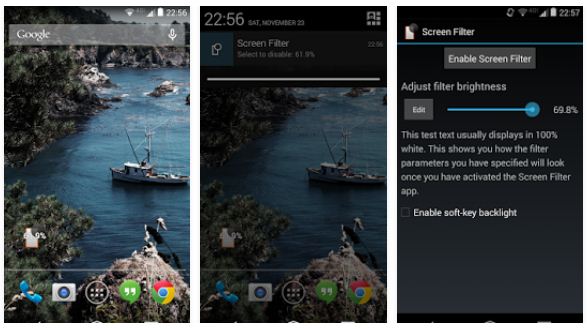
5. Screen Filter

This is the app I’m currently using. If you don’t need all the fancy features and just need a black filter over your screen to reduce the screen brightness below minimum level, Screen Filter is the app for you. Tap the app icon to activate it and tap again to deactivate it. The slider that manages the screen brightness is available in the notification area when the app is activated, from there you can increase or decrease the brightness level 

thanks for reading ..


Monday, 12 October 2015

5 Tips to Protect Your Eyes While Using Smartphones


5 Tips to Protect Your Eyes While Using Smartphones


It’s no secret that staring at the digital screen from a close range all day long have a negative effects on your eyes, after all, that’s what we’ve been taught since we were kids – ” don’t sit close to the TV” said my parents. And I know that they were not alone.Fast forward to today, things haven’t changed much, it’s just smartphones instead of TV. Almost everyone today spends most of their day (and night) staring at their smartphones. So the question is “does staring at your smartphone screen all day really damage your eyes?” Short answer : yes. For a detailed answer read the article

Here are 5 surefire ways to protect your eyes while using smartphones :

1. Adjust Screen Brightness

The first and important thing to do is to adjust your screen’s brightness according to your surrounding. Setting the brightness too low or too much can stress your eyes and can cause problem maintaining focus. To adjust your smartphone’s brightness according to your environment, go to phone’s settings option, then to display, and turn on adaptive brightness. Now the screen brightness will adjust automatically depending on the light around you. Another option is to use an app that manages the screen brightness better than the default brightness settings.

2. Hold Your Smartphone at a Distance

This might seem a bit odd, holding your smartphone at a distance, but this trick can help lot. On average, an user hold its smartphone only about 8 inches from their face. Try holding it at least 15 inches away from your eyes. If you feel any difficulty in reading texts you can always increase the size of texts from settings menu. This might seem awkward at first but once you get used to it, it will help for sure.

3. The 20-20-20 Rule

20-20-20 rule is quite effective. What this rule suggests is instead of staring at your screen all the time, take breaks on regular interval. After every 20 minutes of staring at your screen, take a break of 20 seconds, and look at something which is 20 feet away. Doing so results in relaxation of your eye muscles

4. Blink, Blink, Blink

According to a study, we tend blink about a third less than we normally would when we stare at our smartphone screens. Blinking often keeps the eyes moist and reduce dryness. So keep your eyes moist by blinking while staring at your screen.

5. Get Protective Coatings

In case you don’t know matte screen protector film or corning Gorilla glass have anti-glare feature. If your phone doesn’t have that (which is very rare as most of the smartphones come with corning gorilla glass) you can buy anti-glare coating and carefully put it on your phone’s screen. That should help reduce screen glare.
If you were glasses you can also get that anti-glare coating on your glasses.
So these are some tips that we suggest to protect your eyes. If you know of any other tip, do let us know in the comments.